Install Vineforce Teams Lite | Windows
- Purpose: Install the silent-mode background tracker application on Windows.
- Navigation: Log in to the web portal, go to the Downloads menu, and select Vineforce Teams Lite.
- Installation: Double-click the downloaded
Install-VineforceTeamsLite.batscript, accept UAC prompts, and let it run to completion. - Impact: The tracker starts automatically on system startup and uploads logs to the Vineforce Teams web portal.
Windows 10 / 11 | Windows Server 2016+
What is Vineforce Teams Lite?
Vineforce Teams Lite is a background activity tracking application designed for silent deployment. It runs without interrupting the user's workspace workflow and automatically records activity metrics in the background.
This guide walks you through the simplified installation process using our automated one-click batch installer script for Windows.
What are the System Prerequisites?
Ensure the target Windows machine meets the following requirements before starting:
| Requirement | Details |
|---|---|
| Operating System | Windows 10, Windows 11, or Windows Server 2016+ |
| Privileges | Local Administrator privileges required to run the installation script |
| Internet Access | Active connection required to download the installation packages |
| Disk Space | Minimum of 200 MB of available storage |
How to Download and Install Vineforce Teams Lite
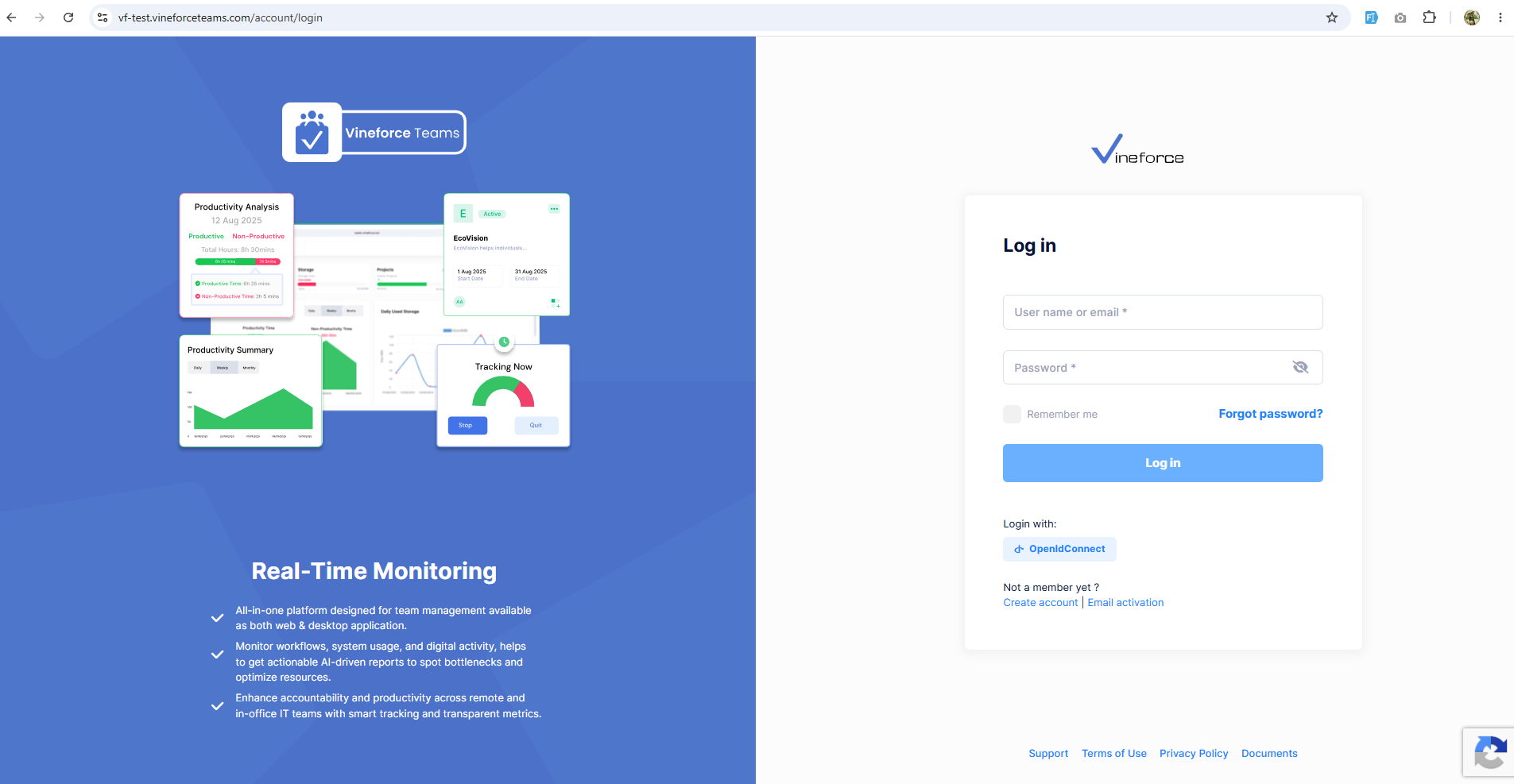
Step 1: Sign In to the Web Portal
Log in to your organization's Vineforce Teams web portal. The URL is specific to your tenancy:
https://<your-tenancy-name>.vineforceteams.com/account/login
Example: If your tenancy name is vf-test, the login URL would be https://vf-test.vineforceteams.com/account/login.
Step 2: Download the Batch Installer
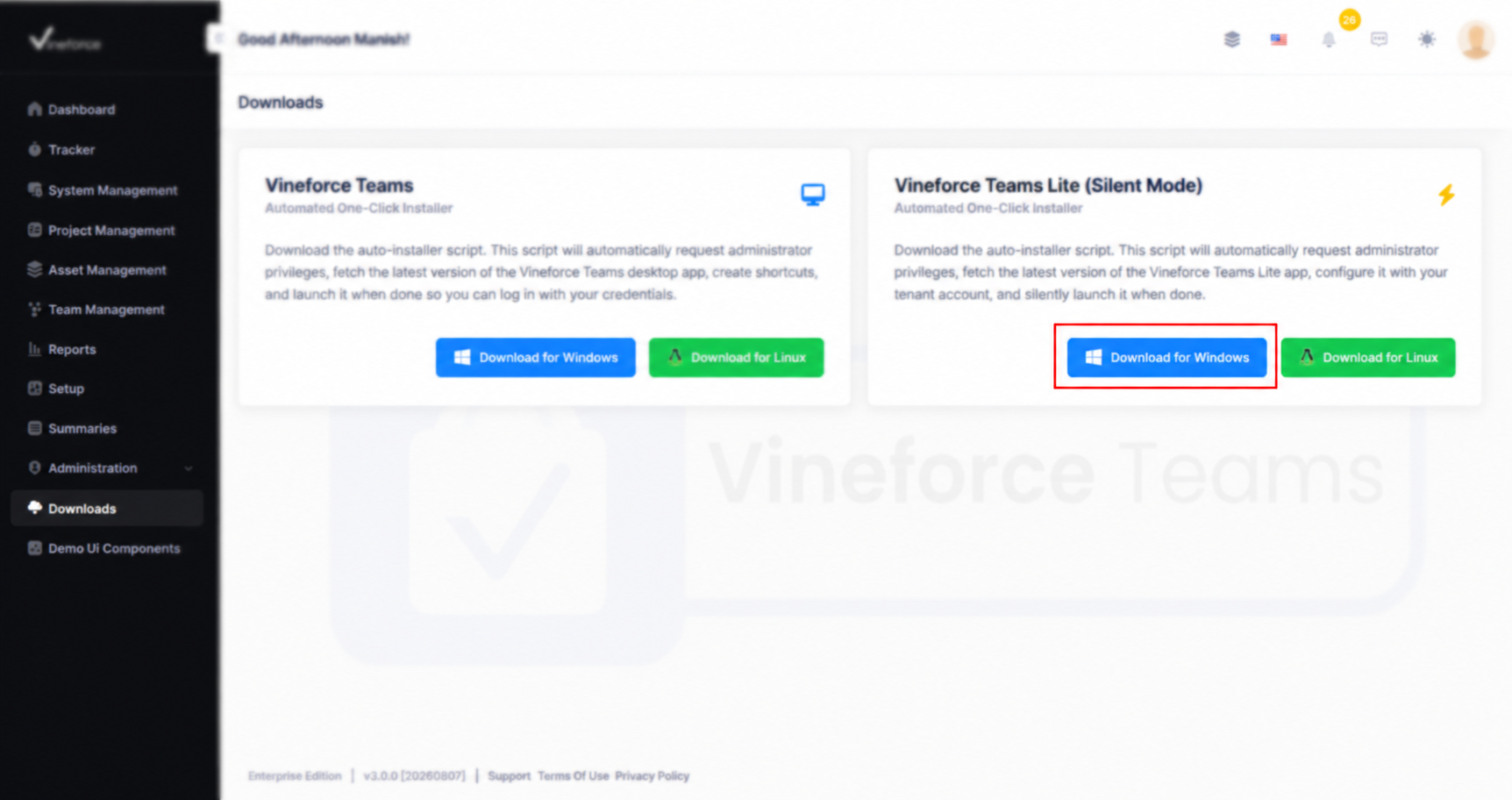
- Navigate to the Downloads section from the left-hand navigation menu.
- Locate the Vineforce Teams Lite (Silent Mode) option.
- Click Download for Windows.
This action downloads a batch script named Install-VineforceTeamsLite.bat to your local computer.
Step 3: Run the Script
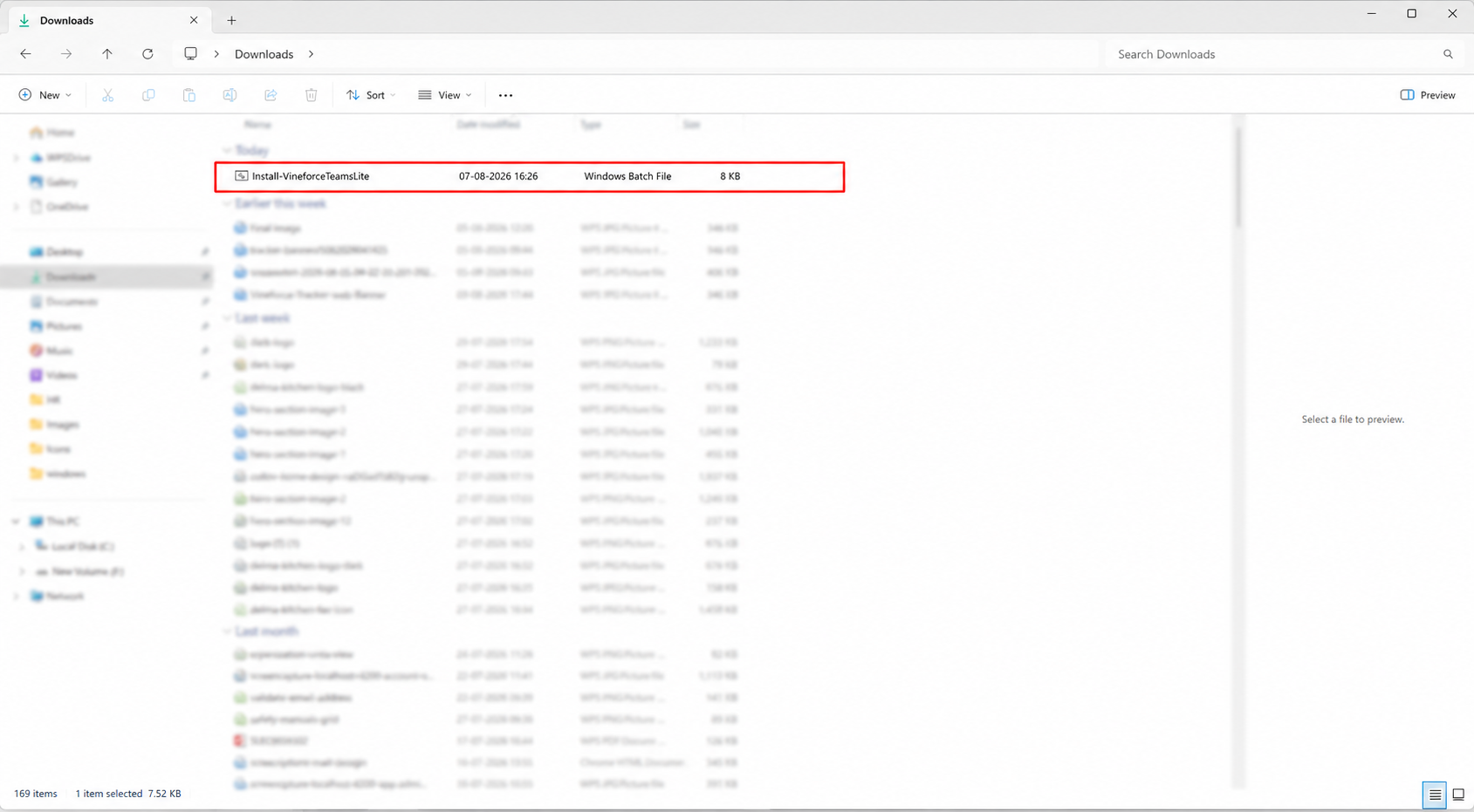
- Open your local Downloads directory (or the destination folder).
- Right-click
Install-VineforceTeamsLite.batand run it (double-clicking the file is also sufficient if administrator policies permit).
Step 4: Accept the Windows Security Warning
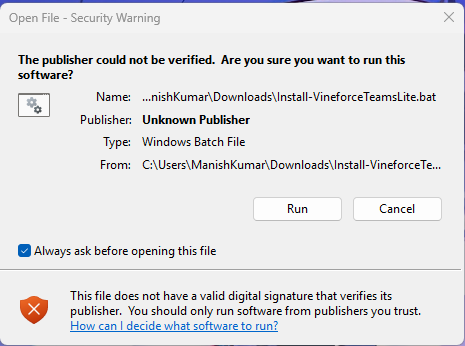
Windows may display a standard security warning popup or a User Account Control (UAC) alert. Click Run or Yes to allow the installer to apply system changes.
Step 5: Complete the Silent Installation
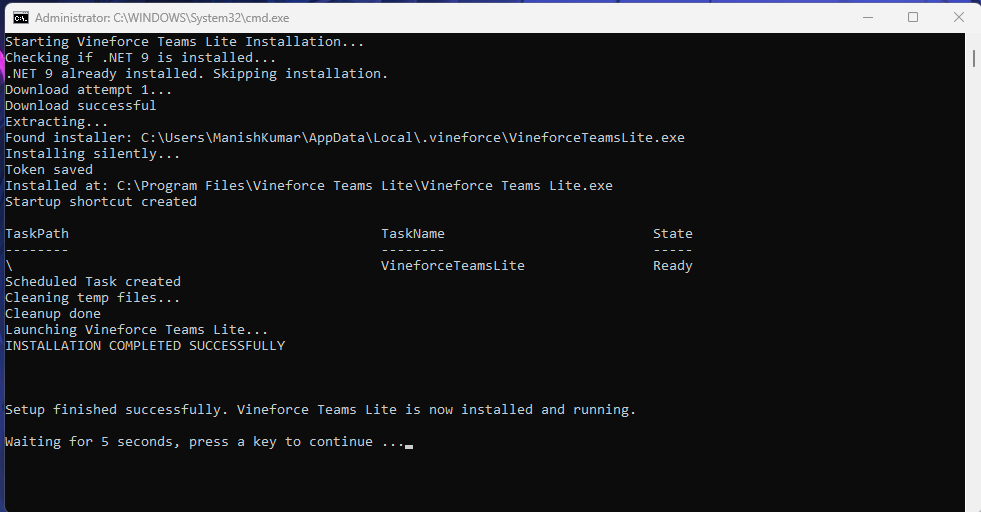
A Command Prompt (CMD) console window will launch automatically. The installer script executes the following stages:
- Checks for system dependencies, including .NET 9.
- Downloads the latest stable version of Vineforce Teams Lite.
- Installs the tracker application silently.
- Creates startup shortcuts to enable automatic launch.
- Cleans up installation files and launches the background tracker.
Once the console displays "INSTALLATION COMPLETED SUCCESSFULLY", the process is done, and you can close the Command Prompt window.
How to Verify the Background Service is Running
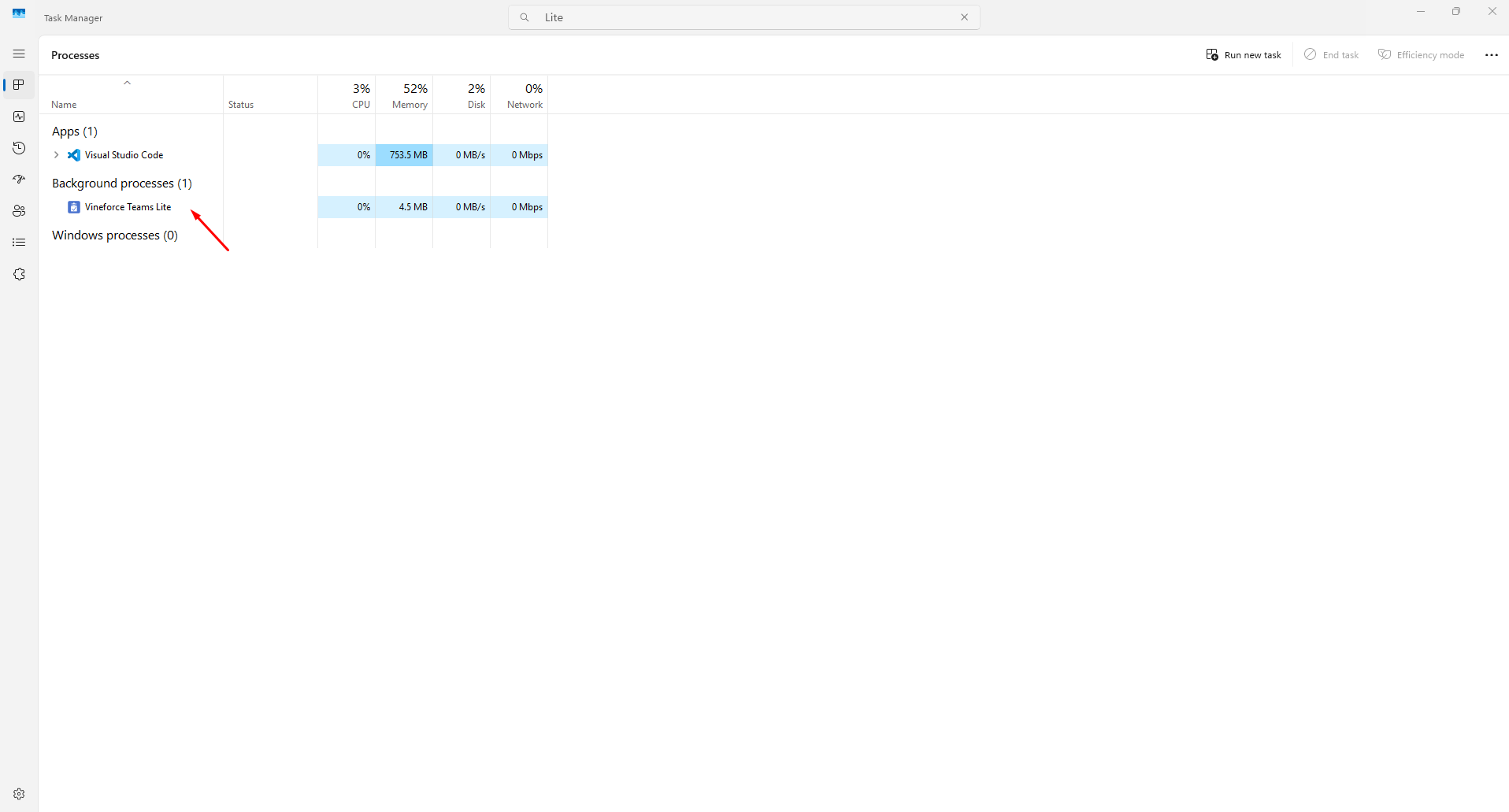
Because Vineforce Teams Lite runs silently without a desktop user interface, verify its active status using the Task Manager:
- Open Task Manager (
Ctrl + Shift + Esc). - Go to the Processes or Details tab.
- Search for Vineforce Teams Lite under background processes.
If the process is active, tracking is running successfully.
How to Troubleshoot Installation Errors
Refer to the troubleshooting guide below if you encounter errors:
| Problem | Potential Cause | Recommended Solution |
|---|---|---|
| Script Blocked by Windows | SmartScreen block | Click "More Info" on the popup and select "Run Anyway". |
| Antivirus Quarantine | Script heuristic match | Temporarily disable or whitelist the batch file in your antivirus settings. |
| Installer Gets Stuck | Network timeout | Check internet connection, verify .NET 9 download access, and run the script again. |
| No Background Process | Auto-start failure | Restart Windows or manually run the script again as an administrator. |
Frequently Asked Questions (FAQ)
What is the main difference between Vineforce Teams Lite and Desktop?
Vineforce Teams Lite runs silently in the background with no tray or dashboard UI. It tracks activity automatically when the machine starts. The Desktop application offers a full messaging and dashboard panel for manual check-ins.
Do tracking logs synced from Lite show up in Unassigned Logs?
If the computer name and hardware UUID are not mapped to an employee profile, the logs will show up on the Unassigned Logs screen. Administrators must complete this mapping to sync logs to user dashboards.
Does the application start automatically after Windows updates?
Yes. The installer script configures automatic startup shortcuts so the background tracker launches immediately on user login.
Related Functionality
- Reconcile Unassigned Logs: Learn how to map time tracking logs synced from this machine to employee profiles.
- Tracker Settings: Adjust intervals, idle thresholds, and screenshot quality.
- Uninstall Vineforce Teams Lite: Steps to uninstall the silent tracker via PowerShell.